EN - Documentation Slides3
- Terminology [EN] | Slides3
- API [EN] | Slides3
- 360ty Elementor Addon - Wordpress Plugin [EN] | Slides3
Terminology [EN] | Slides3
Homeslide
The Homeslide is the main starting point of the slider. Its navigation hash is "#Home". The homeslide has a different Layout and differs in Content.
Mainslide/vertical Slide
A mainslide is a vertical slide of the slider. Scrolling down will always set the next vertical slide active and will ignore the current horizontal slide position.
Subslide/horizontal Slide
A subslide is a horizontal slide of the slider. Each subslide has a mainslide as its parent.
Node
A node is a 360 ° image. The panorama tour consists of nodes that are connected by hotspots.
FOV
FOV (Field of View) describes the zoom variable of a node. This is given in °. The default value is 70. The lower the value, the closer you zoom in. The limit values vary depending on the node and the image resolution, but are mostly between 5 and 100.
Tilt
Tilt describes the vertical alignment of a node. This is given in °. The limit values are -90 to 90. At -90 ° you look into the ground and at 90 ° you look at the sky. At 0 ° just ahead.
Pan
Pan describes the horizontal alignment of a node. This is given in °. The limit values are -360 to 360. The algebraic sign indicates the direction. + = clockwise, - = counterclockwise. +/- 90 ° is a quarter turn, +/- 180 ° is a half turn ...
Control
A control element is an input field in Elementor

API [EN] | Slides3
Getting Started
You can embed Slides3 by includes these script and CSS files in you HTML code:
<head>
    <script type="module" crossorigin src="https://api.360ty.cloud/slides3/js/slides3.js"></script>
    <link rel="stylesheet" href="https://api.360ty.cloud/slides3/css/slides3.css">
    <link rel="stylesheet" href="https://cdnjs.cloudflare.com/ajax/libs/font-awesome/5.13.0/css/all.min.css">
</head>
Now there's a class "Slides3" available. Now create a div and give it a unique ID. This ID needs to be the parameter in the class instantiation. The slides will be created in the div with the ID.
You can optionally add options, such as colors, as the second parameter.
You can create an instance of this class with:
options : {
	colors? : {
		primary : string,
      	secondary : string,
	},
    socials? : {
		social :  "facebook" | "instagram" | "twitter" | "google-plus" | "linkedin" | "tumblr" | "youtube" | "tiktok" | "pinterest" | "flickr" | "reddit" | "quora" | "vimeo";
		link: string;
	}[],
}
var slides3 = new Slides3("myContainer",options?);

//example
var options = {
	colors: {
		primary : "#f40000",
  		secondary : "#ffffff",
	},
	socials: [
      {
        social:"facebook",
        link:"https://www.facebook.com/360ty.world/"
      },
      {
      	social:"instagram",
        link:"https://www.instagram.com/360ty.world_mmf/"
      },
      {
        social:"youtube",
        link:"https://www.youtube.com/channel/UCCiyXizlQQQc_-XC9KcEYiw"
      },
  	],
}
var slides3 = new Slides3("myContainer",options);
The name of the variable doesn't need to be slides3, you can choose any name.
Creating the Homeslide
The Homeslide is optional!
The Homeslide is created with the "createHomeslide" method:
- returns the Homeslide instance
- The first parameter is the type of background you want the Homeslide to have. You can choose between an image (URL), a Video (URL) or a tour (PanoParams).
- The second parameter is the Content of the Homeslide, which is optional.
- There can only be 1 Homeslide. Creating another one will overwrite it.
//types

SkinVariable : {
  [key : string] : string | boolean; /* set skin Variables -> key - name of the variable, value - value of the variable. e.g. to set the hotspot pulse color : {hotspotFarbe : "#fffff"} */;
}

tourParams: {
    basepath : string /* -> URL where the tourfiles are located */;
	node : number /* -> The Node ID without the "node" in front of it */;
	fov? : number [~5 - ~90] /* -> the Zoom value of the 360° Image in ° */;
	tilt? : number [-90 - 90] /* -> the vertical position of the 360° Image in ° (-90 -> looking into the floor, 0 -> looking straight, 90 -> looking in the sky */;
	pan? : number [-360 - 360] /* -> the horizontal position of the 360° Image in ° (the algebraic sign determines the direction -> - = left, + = right | -90 -> quarter turn to the left, 45 -> eigth of a turn to the right)*/;
 	skin? : instanceof pano2vrSkin /* -> to use a custom skin. Sometimes a tour has a custom skin (basepath/skin.js). Importing this script into your HTML will create a global class "pano2vrSkin", which can be passed here */;
    skinVariables? : SkinVariable[]; /* -> a list of skin variables */;
}

background : string | tourParams;

content : {
  	headline?: string;
    caption?: string;
    logo?: {
        src : string;
        href : string;
    }
    startButtonText?: string;
    hideStartButton? : boolean;
}

//template

var homeslide = Slide3.prototype.createHomeslide(background, content?);

//examples

var homeslideContent = {
	headline : "my Headline",
	caption : "my Caption",
	logo : {
		src : "path/to/image.jpg",
		href : "https://my.site.com/,
	},
  	startButtonText : "start Sliding!",
    hideStartButton? : false,
}

//image background

var homeslide = slides3.createHomeslide("path/to/homeslide_background/image.jpg", homeslideContent);

//video background

var homeslide = slides3.createHomeslide("path/to/homeslide_background/video.mp4", homeslideContent);

//tour background

var homeslidePanoParams = {
  basepath: "https://lechwinter.360ty.cloud/",
  node: 45,
  fov: 70,
  tilt: -20,
  pan: 180,
  skinVariables : [{
  	hotspotFarbe : "#f40000"
  }],
}
var homeslide = slides3.createHomeslide(homeslidePanoParams, homeslideContent);
Adding content to the Homeslide
You can also use the methods to add content instead of passing the content as a parameter. With these methods, you can also dynamically change content.
Add a Headline
to add a headline to the Homeslide, use the "addHeadline" method:
Homeslide.prototype.addHeadline(text:String)

//example
homeslide.addHeadline("my Headline")
Add some Text
to add text to the Homeslide, use the "addParagraph" method:
Homeslide.prototype.addParagraph(text:String)

//example:
homeslide.addParagraph("paragraph content")
Add custom Elements *EXPERIMENTAL*
to add custom Elements to the Homeslide, use the "addToTextContainer" method:
Homeslide.prototype.addToTextContainer(element:HTMLElement)
//the element parameter is an HTML element. you can use e.g "document.getElementById("myId")" to append an existing element to the homeslide

//example:
let paragraph = document.createElement("p");
paragraph.innerText = "Paragraph content";

homeslide.addToTextContainer(paragraph)
This is an experimental feature. Use it at your own risk!
The container is a flexbox
Add a Logo
to add a Logo to the Homeslide, use the "addLogo" method:
Homeslide.prototype.addLogo(imgURL:String,link:String)
//imgURL: the src of the image
//link: where to refer, when the logo is clicked

//example:
homeslide.addLogo("https://wiki.360ty.world/favicon.ico","https://wiki.360ty.world/")
Creating Slide
to create a Slide/vertical Slide, use the "createSlide" method:
- returns a Slide instance
- takes tourParams as the first parameter. These will set the background tour of the Slide.
- Optionally takes content as the second parameter. This will create Elements/Content on the Slide.
//types

SkinVariable : {
  [key : string] : string | boolean; /* set skin Variables -> key - name of the variable, value - value of the variable. e.g. to set the hotspot pulse color : {hotspotFarbe : "#fffff"} */;
}

tourParams: {
    basepath : string /* -> URL where the tourfiles are located */;
	node : number /* -> The Node ID without the "node" in front of it */;
	fov? : number [~5 - ~90] /* -> the Zoom value of the 360° Image in ° */;
	tilt? : number [-90 - 90] /* -> the vertical position of the 360° Image in ° (-90 -> looking into the floor, 0 -> looking straight, 90 -> looking in the sky */;
	pan? : number [-360 - 360] /* -> the horizontal position of the 360° Image in ° (the algebraic sign determines the direction -> - = left, + = right | -90 -> quarter turn to the left, 45 -> eigth of a turn to the right)*/;
 	skin? : instanceof pano2vrSkin /* -> to use a custom skin. Sometimes a tour has a custom skin (basepath/skin.js). Importing this script into your HTML will create a global class "pano2vrSkin", which can be passed here */;
    skinVariables? : SkinVariable[]; /* -> a list of skin variables */;
}

content : {
	facebookButtonLink? : string;
    headline?: string;
    description?: string;
    photographer?:string;
    location?: string;
    startButtonLabel?: string;
}

//template

var slide = Slides3.prototype.createSlide(tourParams,content?);

//Example:

var slide = slides3.createSlide({
    basepath : "https://lechwinter.360ty.cloud/",
	node : 45,
	fov : 60,
	tilt : -10,
	pan : -45,
},{
	facebookButtonLink : "https://www.facebook.com/360ty.world/photos/4481435151872107",
    headline : "Slide Headline",
    description : "Slide description",
    photographer : "Rene",
    location : "360ty World",
    startButtonLabel : "start 360° Tour"
});
Adding Content to a Slide
You can also use the methods to add content instead of passing the content as a parameter. With these methods, you can also dynamically change content.
Adding Buttons
//template
Slide.prototype.addToButtonContainer(element:HTMLElement);

//example:
var newButton = document.createElement("a");
newButton.href = "https://360ty.world/";
newbutton.target = "_blank";
newButton.innerText = "buttonText";

slide.addToButtonContainer(newButton);
You can add any Element to this.
The Element automatically will get the "slide-button" CSS class to match the style.
Use an "<a>" Element to better fit in with the style.
Adding a Headline
to add a headline to a Slide, use the "addHeadline" method:
Slide.prototype.addHeadline(text:String);

//example:
slide.addHeadline("My Headline");
adding a Description
to add a description to a Slide, use the "addDescription" method:
Slide.prototype.addDescription(text:string);

//example:
slide.addDescription("This Slide was brought to you by 360ty.world");
adding a Photographer
to add a photographer to a Slide, use the "addPhotographer" method:
Slide.prototype.addPhotographer(text:string);

//example:
slide.addFotographer("Rene");
adding a Location
to add a location to a Slide, use the "addLocation" method:
Slide.prototype.addLocation(text:String);

//example:
slide.addLocation("Altach, Vorarlberg");
adding the Facebook share Button
to add the Facebook share-button, use the "addFacebookButton" method:
Slide.prototype.addFacebookButton(link:String);

//example:
slide.addFacebookButton("https://www.facebook.com/360ty.world/photos/4481435151872107");
creating Subslides
to create a Subslide/horizontal slide, use the "createSubslide" method on a Slide:
//types

SkinVariable : {
  [key : string] : string | boolean; /* set skin Variables -> key - name of the variable, value - value of the variable. e.g. to set the hotspot pulse color : {hotspotFarbe : "#fffff"} */;
}

tourParams: {
    basepath : string /* -> URL where the tourfiles are located */;
	node : number /* -> The Node ID without the "node" in front of it */;
	fov? : number [~5 - ~90] /* -> the Zoom value of the 360° Image in ° */;
	tilt? : number [-90 - 90] /* -> the vertical position of the 360° Image in ° (-90 -> looking into the floor, 0 -> looking straight, 90 -> looking in the sky */;
	pan? : number [-360 - 360] /* -> the horizontal position of the 360° Image in ° (the algebraic sign determines the direction -> - = left, + = right | -90 -> quarter turn to the left, 45 -> eigth of a turn to the right)*/;
 	skin? : instanceof pano2vrSkin /* -> to use a custom skin. Sometimes a tour has a custom skin (basepath/skin.js). Importing this script into your HTML will create a global class "pano2vrSkin", which can be passed here */;
    skinVariables? : SkinVariable[]; /* -> a list of skin variables */;
}

content : {
	facebookButtonLink? : string;
    headline?: string;
    description?: string;
    photographer?:string;
    location?: string;
    startButtonLabel?: string;
}

//template

var subslide = Slide.prototype.createSubslide(tourParams,content?);

//Example:

var subslide = slide.createSubslide({
    basepath : "https://lechsommer.360ty.cloud/",
	node : 15,
	fov : 50,
	tilt : -10,
	pan : -45,
},{
	facebookButtonLink : "https://www.facebook.com/360ty.world/photos/4481435151872107",
    headline : "Subslide Headline",
    description : "Subslide description",
    photographer : "Rene",
    location : "360ty World",
    startButtonLabel : "start 360° Tour"
});
A Subslide is identical to a Slide, except you can't add more Subslides to them. All methods of the Slide also apply to the Subslide.
About us
to add the "About us" and "Partner" buttons in the Navbar, use the "createAboutUs" method:
- returns the AboutUs instance
- optionally add content as the first paragraph
//types

AboutPartner {
   imgURL: String /* the URL of the image of the partner */,
   link: String /* the URL to refer to, when the partner is clicked on */,
}

content: {
 	headline?: string;
    caption?: string;
    image?: string;
    descriptionParagraphs? : string[];
    partners? : AboutPartner[];
}

//template

Slides3.prototype.createAboutUs(content?);

//example
var aboutContent = {
	headline : "About 360ty",
	caption : "360ty-fy your world",
	image : "https://logos.360ty.cloud/360ty_world_extern.png",
	descriptionParagraphs : [
	"paragraph 1",
	"paragraph 2",
	],
	partners : [{
    	link : "https://360ty.world/",
      	imgURL : "https://logos.360ty.cloud/360ty_world_extern.png"
    }],
}
slides3.createAboutUsContainer(aboutContent);
Adding Content to "About us"
Adding a Headline
to add a Headline to the "about us" panel, use the "addHeadline" method:
//template

AboutUs.prototype.addHeadline(text:string);

//example

aboutUs.addHeadline("About 360ty");
Adding a caption
to add a caption to the "about us" panel, use the "addSubHeadline" method:
AboutUs.prototype.addSubHeadline(text:string);

//example
aboutUs.addSubHeadline("360ty-fy your world");
Adding an image
to add an Image to the "about us" panel, use the "addImage" method:
AboutUs.prototype.addImage(src:string);

//example
aboutUs.addImage("https://wiki.360ty.world/favicon.ico");
Adding a Paragraph
to add a paragraph to the "about us" panel, use the "addParagraph" method:
AboutUs.prototype.addParagraph(paragraph:string);

//example
aboutUs.addParagraph(`Lorem ipsum dolor sit amet consectetur adipisicing elit. Maxime mollitia,
molestiae quas vel sint commodi repudiandae consequuntur voluptatum laborum
numquam blanditiis harum quisquam eius sed odit fugiat iusto fuga praesentium
optio, eaque rerum! Provident similique accusantium nemo autem. Veritatis
obcaecati tenetur iure eius earum ut molestias architecto voluptate aliquam
nihil, eveniet aliquid culpa officia aut! Impedit sit sunt quaerat, odit,
tenetur error, harum nesciunt ipsum debitis quas aliquid.`);
Adding Partners
to add partners to the "about us" panel, use the "addPartners" method:
//types

partner{
   imgURL: String /* the URL of the image of the partner */,
   link: String /* the URL to refer to, when the partner is clicked on */,
}

//prototype

AboutUs.prototype.addPartners(partner[]);

//example
aboutUs.addPartners(
[
  {
    imgURL:"https://storage.googleapis.com/logos.360ty.cloud/360ty_world_extern.png",
    link:"https://360ty.world/",
  },
  {
    imgURL:"https://multimedia-fabrik.com/wp-content/uploads/2019/02/cropped-Logo_MMF_300.png",
    link:"https://multimedia-fabrik.com",
  }
]
);
General Settings
Screenshot Studio Button
//template

Slides3.prototype.setShowScreenshotButton(show:Boolean)

//example:

slides3.setShowScreenshotButton(true);
Tour loading
setting Tour loading to "false", will prevent the tour from loading. To set this variable, use the "setTourLoad" method:
//template

Slides3.prototype.setTourLoad(load:Boolean)

//example:

slides3.setTourLoad(false);
This is mostly used for debugging purposes or for frameworks that re-render the tour on input changes, like Elementor. Re-rendering the tour too many times will overload the WebGL Context and significantly slows down your browser or even crash it.
Initialize Slides
after setting the options and creating the slides, you can initialize the Slides with the "init" method:
slides3.init()Example
<html>
<head>
  <meta charset="UTF-8">
  <meta name="apple-mobile-web-app-capable" content="yes">
  <meta name="viewport" content="width=device-width, initial-scale=1.0, maximum-scale=1.0, user-scalable=no">
  <link rel="stylesheet" href="https://storage.googleapis.com/api.360ty.cloud/slides3/css/slides3.css">
  <link href="https://cdnjs.cloudflare.com/ajax/libs/font-awesome/5.13.0/css/all.min.css" rel="stylesheet">
  <script src="https://api.360ty.cloud/slides3/js/slides3.js"></script>
  <style>
    body{
      min-height: -webkit-fill-available;
      min-height: 100vh;
      margin:0;
    }
    #slides_container{
      height:100%;
      width:100%;
      overflow: hidden;
    }
  </style>
</head>
<body>
  <!-- creating the Slides container -->
  <div id="slides_container"></div>

  <!-- creating the Slides -->
  <script>

    var options = {
	colors: {
		primary : "#f40000",
  		secondary : "#ffffff",
	},
	socials: [
      {
        social:"facebook",
        link:"https://www.facebook.com/360ty.world/"
      },
      {
      	social:"instagram",
        link:"https://www.instagram.com/360ty.world_mmf/"
      },
      {
        social:"youtube",
        link:"https://www.youtube.com/channel/UCCiyXizlQQQc_-XC9KcEYiw"
      },
  	],
}
	var slides3 = new Slides3("slides_container",options); //instanciating
    //About us
    var aboutUsContent = {
     	headline: "About 360ty",
      	caption : "360ty-fy your world",
		image : "https://multimedia-fabrik.com/wp-content/uploads/2019/02/cropped-Logo_MMF_300.png",
      	descriptionParagraphs : [
		"paragraph 1",
		"paragraph 2",
		],
      	partners : [
          {
            imgURL:"https://multimedia-fabrik.com/wp-content/uploads/2019/02/cropped-Logo_MMF_300.png",
            link:"https://multimedia-fabrik.com"
          },
          {
            imgURL:"https://storage.googleapis.com/logos.360ty.cloud/360ty_world_extern.png",
            link:"https://360ty.world"
          },
        ],
    };
  	var aboutUs = slides3.createAboutUs(aboutUsContent);
    //Homeslide
    var homeslideBackground = {
    	basepath:"https://altach.360ty.world/",
    	node:1,
    	fov:20,
      	tilt:-20,
      	pan:21
    };
    var homeslideContent = {
      headline : "360ty",
      caption : "Experience 360° Photography",
      startButtonText : "start Slidin'",
      logo : {
      	src:"https://logos.360ty.cloud/360ty_world_extern.png",
        href:"https://360ty.world/",
      },
    };
    var homeslide = slides3.createHomeslide(homeslideBackground,homeslideContent);

    //Slide 1
    let slide1 = slides3.createSlide({
        basepath: "https://lechwinter.360ty.cloud/",
        node: 1,
        fov: 60,
        tilt: 20,
        pan: -10
    },{
    	headline : "Mainproject: Lech",
      	description : "Lech - Winter",
      	photographer : "Rene",
      	location : "Lech am Arlberg | 47°13'N 10°08'",
      	facebookButtonLink: "https://www.facebook.com/lechzuers/photos/a.10157076246188447/10157076247643447/?type=3&theater"
    });

    //Subslide 1 - 1
    let slide1_1 = slide1.createSubslide({
        basepath: "https://lechsommer.360ty.cloud/",
        node: 1,
        fov: 60,
        tilt: 20,
       	pan: -10
      },{
    	headline : "Mainproject: Lech",
      	description : "Lech - Summer",
      	photographer : "Rene",
      	location : "Lech am Arlberg | 47°13'N 10°08'",
    });

    //Subslide 1 - 2

    let slide1_2 = slide1.createSubslide({
        basepath: "https://lechbynight.360ty.cloud/",
        node: 1,
        fov: 60,
        tilt: 20,
       	pan: -10
      },{
    	headline : "Mainproject: Lech",
      	description : "Lech - Night",
      	photographer : "Rene",
      	location : "Lech am Arlberg | 47°13'N 10°08'",
    });

    //Slide 2
    let slide2 = slides3.createSlide({
        basepath: "https://burgiswinter.360ty.cloud/",
        node: 1,
        fov: 60,
        tilt: 20,
        pan: -10
      },{
    	headline : "Customer Project: Burgis",
      	description : "Burgis - Winter",
      	photographer : "Rene",
    });

    //Subslide 2 - 1
    let slide2_1 = slide2.createSubslide({
        basepath: "https://burgissommer.360ty.cloud/",
        node: 1,
        fov: 60,
        tilt: 20,
       	pan: -10
      },{
    	headline : "Customer Project: Burgis",
      	description : "Burgis - Summer",
      	photographer : "Rene",
    });
    //init slides3
    slides3.init()
  </script>
</body>
</html>
360ty Elementor Addon - Wordpress Plugin [EN] | Slides3
installation
WordPress Dashboard
-
-
- download the Plugin here
- Navigate to your WeordPress Dashboard -> Plugins
- Click on the “Install” button to the right of the “Plugins” heading
- At the same place, click on the “Upload Plugin” button, select the downloaded .zip file and click on "install now"
- Click on the "activate Plugin" button
- Now you should see a new Widget-category called "360ty" in the Elementor Widget-tab.
-
Filebrowser
-
-
- download the Plugin here and unzip the .zip file
- Navigate to your WordPress folder -> wp-content -> plugins
- Paste the extracted folder into the plugins folder
- Activate the “360ty Elementor Addon” plugin in your WordPress dashboard -> Plugins -> installed plugins
- Now you should see a new Widget-category called "360ty" in the Elementor Widget-tab.
-
CLI
Windows
-
-
- Open a terminal (e.g .: CMD)
- Change to your WordPress directory(cd FILEPATH / TO / WORDPRESS)
- Navigate to your plugins folder (cd wp-content/plugins)
- execute this Commandline:
-
git clone https://github.com/Jonas-360ty/360ty_Elementor_Addon_Plugin.gitLinux
-
-
- Open a terminal (e.g .: Shell)
- Change to your WordPress directory(cd FILEPATH / TO / WORDPRESS)
- Navigate to your plugins folder (cd wp-content/plugins)
- execute this Commandline:
-
git clone https://github.com/Jonas-360ty/360ty_Elementor_Addon_Plugin.gitMac-OS
-
-
- Open a terminal (e.g .: CMD)
- Change to your WordPress directory(cd FILEPATH / TO / WORDPRESS)
- Navigate to your plugins folder (cd wp-content/plugins)
-
execute this Commandline:
-
git clone https://github.com/Jonas-360ty/360ty_Elementor_Addon_Plugin.gitSSH
Windows
-
-
- open an SSH Client (e.g .: Putty)
- Connect to your web server on which WordPress is located
- Change to your WordPress directory(cd FILEPATH / TO / WORDPRESS)
- Navigate to your plugins folder (cd wp-content/plugins)
- execute this Commandline:
-
git clone ssh://git@github.com:Jonas-360ty/360ty_Elementor_Addon_Plugin.gitLinux
-
-
- Open a terminal (e.g .: Shell)
- Connect to your web server on which WordPress is located
- Change to your WordPress directory(cd FILEPATH / TO / WORDPRESS)
- Navigate to your plugins folder (cd wp-content/plugins)
- execute this Commandline:
-
git clone ssh://git@github.com:Jonas-360ty/360ty_Elementor_Addon_Plugin.gitMac-OS
-
-
- Open a terminal (e.g .: CMD)
- Connect to your web server on which WordPress is located
- Change to your WordPress directory(cd FILEPATH / TO / WORDPRESS)
- Navigate to your plugins folder (cd wp-content/plugins)
- execute this Commandline:
-
git clone ssh://git@github.com:Jonas-360ty/360ty_Elementor_Addon_Plugin.gitPlugin Guide
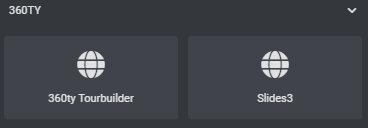
As soon as the plugin has been installed and activated, a new category “360ty” appears in the Elementor widget panel, in which the Slides 3 widget can be found
Controls
Section: Content
Subsection: Settings
Load Tour
Activating "Load Tour" prevents the tour from loading in the Elementor Editor. Since Elementor reloads the entire widget with every change, the tour is reloaded with every change. If the tour is reloaded frequently, the WebGL context of the browser overflows, which leads to the browser becoming very slow or even crashing.
Screenshot Button
Switching on "Screenshot Button" creates a button for each slide, which opens 360ty Screenshot
Studio the current location. This button is placed next to the "back" button and is only visible when the tour is active.
Subsection: Homeslide
The homeslide is the starting point for the slides. It has a different layout than the normal slides.
Tab: Content
Headline
The Headline of the Slide
Sub-Headline
The Sub-Headline of the Slide
Start Slide Button label
The text in the Button, that starts the Slides
Logo
The Logo in the bottom-right corner of the Homeslide
Logo Link
The Link to refer to, when the Logo is clicked
Tab: Background
Background Type
What kind of background should be used on the Homeslide
-
-
-
-
-
-
-
-
-
- Tour:
A 360 ° tour is used as the background - Image:
An Image is used as the background - Video:
A Video is used as the background
If you use Cloudflare Stream to deliver your videos, the ID of the video can be inserted here
- Tour:
-
-
-
-
-
-
-
-
Subsection: Navbar
Social Buttons
Erstellt einen Social Media Button an der rechten Seite der Navbar
Creates a socail media button on the right if the navbar
Social Type
Determines the Icon, which is used for the button
Social URL
The URL that's refered to, when the social media button is clicked
Subsection: About us & Partner
This is where the content of the "About Us" panel is determined
Tab: About us
About us & Partner
If this is set to "show", the "About us" and "Partner" buttons are created in the navbar
Headline
The Headline in the "about us" panel
Sub-headline
The sub-headline in the "about us" panel
Description
The description in the "about us" panel
Image
An image, that can be inserted before the description
Tab: Partner
Name
What the element should be called in the Elementor Editor. Doesn't change anything in the slides
Link
The URL that's refered to, when the partner is clicked on
Image
The Image used for the partner
Subsection: Slides
The Slides are created here
Slide Name
What the element should be called in the Elementor Editor. Doesn't change anything in the slides. Certainly helps keeping the overview tho
Direction
The direction of the Slide
vertical -> Mainslide
horizontal -> Subslide
The first slide has to be a vertical one!
The horizontal slides always append themselfs to the previous vertical slide
Tab: Content
the content of the slide
Headline
the headline of the slide
Tour-start Button Label
The label of the button, that sets the tour active
Facebook Button URL
The facebook link to the tour.
If the button is not wanted, this field can be left empty
Description
The description of the slide
Photographer
The Photographer of the slide
Location
The Location of the slide tour
Tab: Tour
The Settings of the slide tour
Basepath
The URL on which the tour files of the desired tour are located
Node
the ID of the node on which the tour should start
FOV
The field of view / the zoom value on which the tour is started.
-
-
-
-
-
-
-
-
-
- The limit values are different depending on the tour and node. Mostly, however, between 5 and 100.
- Small value -> zoomed in
- Great value -> zoomed out
- Standard -> 70
-
-
-
-
-
-
-
-
Tilt
The vertical value of the start position of the tour in °
-
-
-
-
-
-
-
-
-
- limit values: -90 - 90
- -90 -> 90° downwards
- 90 -> 90° upwards
- 0 -> straight ahead
-
-
-
-
-
-
-
-
Pan
The horizontal value of the start position of the tour in °
-
-
-
-
-
-
-
-
-
- limit values: -360 - 360
- -90 -> quarter turn to the right
- 180-> half a turn to the left
- 0 -> straight ahead
-
-
-
-
-
-
-
-
Section: Style
Slides Colors
The primary and secondary colors are specified here. These influence some elements of the slides, such as the color of the buttons