Slides 3
- EN - Documentation Slides3
- Terminology [EN] | Slides3
- API [EN] | Slides3
- 360ty Elementor Addon - Wordpress Plugin [EN] | Slides3
- DE - Dokumentation Slides3
EN - Documentation Slides3
Terminology [EN] | Slides3
Homeslide
The Homeslide is the main starting point of the slider. Its navigation hash is "#Home". The homeslide has a different Layout and differs in Content.
Mainslide/vertical Slide
A mainslide is a vertical slide of the slider. Scrolling down will always set the next vertical slide active and will ignore the current horizontal slide position.
Subslide/horizontal Slide
A subslide is a horizontal slide of the slider. Each subslide has a mainslide as its parent.
Node
A node is a 360 ° image. The panorama tour consists of nodes that are connected by hotspots.
FOV
FOV (Field of View) describes the zoom variable of a node. This is given in °. The default value is 70. The lower the value, the closer you zoom in. The limit values vary depending on the node and the image resolution, but are mostly between 5 and 100.
Tilt
Tilt describes the vertical alignment of a node. This is given in °. The limit values are -90 to 90. At -90 ° you look into the ground and at 90 ° you look at the sky. At 0 ° just ahead.
Pan
Pan describes the horizontal alignment of a node. This is given in °. The limit values are -360 to 360. The algebraic sign indicates the direction. + = clockwise, - = counterclockwise. +/- 90 ° is a quarter turn, +/- 180 ° is a half turn ...
Control
A control element is an input field in Elementor

API [EN] | Slides3
Getting Started
You can embed Slides3 by includes these script and CSS files in you HTML code:
<head>
    <script type="module" crossorigin src="https://api.360ty.cloud/slides3/js/slides3.js"></script>
    <link rel="stylesheet" href="https://api.360ty.cloud/slides3/css/slides3.css">
    <link rel="stylesheet" href="https://cdnjs.cloudflare.com/ajax/libs/font-awesome/5.13.0/css/all.min.css">
</head>
Now there's a class "Slides3" available. Now create a div and give it a unique ID. This ID needs to be the parameter in the class instantiation. The slides will be created in the div with the ID.
You can optionally add options, such as colors, as the second parameter.
You can create an instance of this class with:
options : {
	colors? : {
		primary : string,
      	secondary : string,
	},
    socials? : {
		social :  "facebook" | "instagram" | "twitter" | "google-plus" | "linkedin" | "tumblr" | "youtube" | "tiktok" | "pinterest" | "flickr" | "reddit" | "quora" | "vimeo";
		link: string;
	}[],
}
var slides3 = new Slides3("myContainer",options?);

//example
var options = {
	colors: {
		primary : "#f40000",
  		secondary : "#ffffff",
	},
	socials: [
      {
        social:"facebook",
        link:"https://www.facebook.com/360ty.world/"
      },
      {
      	social:"instagram",
        link:"https://www.instagram.com/360ty.world_mmf/"
      },
      {
        social:"youtube",
        link:"https://www.youtube.com/channel/UCCiyXizlQQQc_-XC9KcEYiw"
      },
  	],
}
var slides3 = new Slides3("myContainer",options);
The name of the variable doesn't need to be slides3, you can choose any name.
Creating the Homeslide
The Homeslide is optional!
The Homeslide is created with the "createHomeslide" method:
- returns the Homeslide instance
- The first parameter is the type of background you want the Homeslide to have. You can choose between an image (URL), a Video (URL) or a tour (PanoParams).
- The second parameter is the Content of the Homeslide, which is optional.
- There can only be 1 Homeslide. Creating another one will overwrite it.
//types

SkinVariable : {
  [key : string] : string | boolean; /* set skin Variables -> key - name of the variable, value - value of the variable. e.g. to set the hotspot pulse color : {hotspotFarbe : "#fffff"} */;
}

tourParams: {
    basepath : string /* -> URL where the tourfiles are located */;
	node : number /* -> The Node ID without the "node" in front of it */;
	fov? : number [~5 - ~90] /* -> the Zoom value of the 360° Image in ° */;
	tilt? : number [-90 - 90] /* -> the vertical position of the 360° Image in ° (-90 -> looking into the floor, 0 -> looking straight, 90 -> looking in the sky */;
	pan? : number [-360 - 360] /* -> the horizontal position of the 360° Image in ° (the algebraic sign determines the direction -> - = left, + = right | -90 -> quarter turn to the left, 45 -> eigth of a turn to the right)*/;
 	skin? : instanceof pano2vrSkin /* -> to use a custom skin. Sometimes a tour has a custom skin (basepath/skin.js). Importing this script into your HTML will create a global class "pano2vrSkin", which can be passed here */;
    skinVariables? : SkinVariable[]; /* -> a list of skin variables */;
}

background : string | tourParams;

content : {
  	headline?: string;
    caption?: string;
    logo?: {
        src : string;
        href : string;
    }
    startButtonText?: string;
    hideStartButton? : boolean;
}

//template

var homeslide = Slide3.prototype.createHomeslide(background, content?);

//examples

var homeslideContent = {
	headline : "my Headline",
	caption : "my Caption",
	logo : {
		src : "path/to/image.jpg",
		href : "https://my.site.com/,
	},
  	startButtonText : "start Sliding!",
    hideStartButton? : false,
}

//image background

var homeslide = slides3.createHomeslide("path/to/homeslide_background/image.jpg", homeslideContent);

//video background

var homeslide = slides3.createHomeslide("path/to/homeslide_background/video.mp4", homeslideContent);

//tour background

var homeslidePanoParams = {
  basepath: "https://lechwinter.360ty.cloud/",
  node: 45,
  fov: 70,
  tilt: -20,
  pan: 180,
  skinVariables : [{
  	hotspotFarbe : "#f40000"
  }],
}
var homeslide = slides3.createHomeslide(homeslidePanoParams, homeslideContent);
Adding content to the Homeslide
You can also use the methods to add content instead of passing the content as a parameter. With these methods, you can also dynamically change content.
Add a Headline
to add a headline to the Homeslide, use the "addHeadline" method:
Homeslide.prototype.addHeadline(text:String)

//example
homeslide.addHeadline("my Headline")
Add some Text
to add text to the Homeslide, use the "addParagraph" method:
Homeslide.prototype.addParagraph(text:String)

//example:
homeslide.addParagraph("paragraph content")
Add custom Elements *EXPERIMENTAL*
to add custom Elements to the Homeslide, use the "addToTextContainer" method:
Homeslide.prototype.addToTextContainer(element:HTMLElement)
//the element parameter is an HTML element. you can use e.g "document.getElementById("myId")" to append an existing element to the homeslide

//example:
let paragraph = document.createElement("p");
paragraph.innerText = "Paragraph content";

homeslide.addToTextContainer(paragraph)
This is an experimental feature. Use it at your own risk!
The container is a flexbox
Add a Logo
to add a Logo to the Homeslide, use the "addLogo" method:
Homeslide.prototype.addLogo(imgURL:String,link:String)
//imgURL: the src of the image
//link: where to refer, when the logo is clicked

//example:
homeslide.addLogo("https://wiki.360ty.world/favicon.ico","https://wiki.360ty.world/")
Creating Slide
to create a Slide/vertical Slide, use the "createSlide" method:
- returns a Slide instance
- takes tourParams as the first parameter. These will set the background tour of the Slide.
- Optionally takes content as the second parameter. This will create Elements/Content on the Slide.
//types

SkinVariable : {
  [key : string] : string | boolean; /* set skin Variables -> key - name of the variable, value - value of the variable. e.g. to set the hotspot pulse color : {hotspotFarbe : "#fffff"} */;
}

tourParams: {
    basepath : string /* -> URL where the tourfiles are located */;
	node : number /* -> The Node ID without the "node" in front of it */;
	fov? : number [~5 - ~90] /* -> the Zoom value of the 360° Image in ° */;
	tilt? : number [-90 - 90] /* -> the vertical position of the 360° Image in ° (-90 -> looking into the floor, 0 -> looking straight, 90 -> looking in the sky */;
	pan? : number [-360 - 360] /* -> the horizontal position of the 360° Image in ° (the algebraic sign determines the direction -> - = left, + = right | -90 -> quarter turn to the left, 45 -> eigth of a turn to the right)*/;
 	skin? : instanceof pano2vrSkin /* -> to use a custom skin. Sometimes a tour has a custom skin (basepath/skin.js). Importing this script into your HTML will create a global class "pano2vrSkin", which can be passed here */;
    skinVariables? : SkinVariable[]; /* -> a list of skin variables */;
}

content : {
	facebookButtonLink? : string;
    headline?: string;
    description?: string;
    photographer?:string;
    location?: string;
    startButtonLabel?: string;
}

//template

var slide = Slides3.prototype.createSlide(tourParams,content?);

//Example:

var slide = slides3.createSlide({
    basepath : "https://lechwinter.360ty.cloud/",
	node : 45,
	fov : 60,
	tilt : -10,
	pan : -45,
},{
	facebookButtonLink : "https://www.facebook.com/360ty.world/photos/4481435151872107",
    headline : "Slide Headline",
    description : "Slide description",
    photographer : "Rene",
    location : "360ty World",
    startButtonLabel : "start 360° Tour"
});
Adding Content to a Slide
You can also use the methods to add content instead of passing the content as a parameter. With these methods, you can also dynamically change content.
Adding Buttons
//template
Slide.prototype.addToButtonContainer(element:HTMLElement);

//example:
var newButton = document.createElement("a");
newButton.href = "https://360ty.world/";
newbutton.target = "_blank";
newButton.innerText = "buttonText";

slide.addToButtonContainer(newButton);
You can add any Element to this.
The Element automatically will get the "slide-button" CSS class to match the style.
Use an "<a>" Element to better fit in with the style.
Adding a Headline
to add a headline to a Slide, use the "addHeadline" method:
Slide.prototype.addHeadline(text:String);

//example:
slide.addHeadline("My Headline");
adding a Description
to add a description to a Slide, use the "addDescription" method:
Slide.prototype.addDescription(text:string);

//example:
slide.addDescription("This Slide was brought to you by 360ty.world");
adding a Photographer
to add a photographer to a Slide, use the "addPhotographer" method:
Slide.prototype.addPhotographer(text:string);

//example:
slide.addFotographer("Rene");
adding a Location
to add a location to a Slide, use the "addLocation" method:
Slide.prototype.addLocation(text:String);

//example:
slide.addLocation("Altach, Vorarlberg");
adding the Facebook share Button
to add the Facebook share-button, use the "addFacebookButton" method:
Slide.prototype.addFacebookButton(link:String);

//example:
slide.addFacebookButton("https://www.facebook.com/360ty.world/photos/4481435151872107");
creating Subslides
to create a Subslide/horizontal slide, use the "createSubslide" method on a Slide:
//types

SkinVariable : {
  [key : string] : string | boolean; /* set skin Variables -> key - name of the variable, value - value of the variable. e.g. to set the hotspot pulse color : {hotspotFarbe : "#fffff"} */;
}

tourParams: {
    basepath : string /* -> URL where the tourfiles are located */;
	node : number /* -> The Node ID without the "node" in front of it */;
	fov? : number [~5 - ~90] /* -> the Zoom value of the 360° Image in ° */;
	tilt? : number [-90 - 90] /* -> the vertical position of the 360° Image in ° (-90 -> looking into the floor, 0 -> looking straight, 90 -> looking in the sky */;
	pan? : number [-360 - 360] /* -> the horizontal position of the 360° Image in ° (the algebraic sign determines the direction -> - = left, + = right | -90 -> quarter turn to the left, 45 -> eigth of a turn to the right)*/;
 	skin? : instanceof pano2vrSkin /* -> to use a custom skin. Sometimes a tour has a custom skin (basepath/skin.js). Importing this script into your HTML will create a global class "pano2vrSkin", which can be passed here */;
    skinVariables? : SkinVariable[]; /* -> a list of skin variables */;
}

content : {
	facebookButtonLink? : string;
    headline?: string;
    description?: string;
    photographer?:string;
    location?: string;
    startButtonLabel?: string;
}

//template

var subslide = Slide.prototype.createSubslide(tourParams,content?);

//Example:

var subslide = slide.createSubslide({
    basepath : "https://lechsommer.360ty.cloud/",
	node : 15,
	fov : 50,
	tilt : -10,
	pan : -45,
},{
	facebookButtonLink : "https://www.facebook.com/360ty.world/photos/4481435151872107",
    headline : "Subslide Headline",
    description : "Subslide description",
    photographer : "Rene",
    location : "360ty World",
    startButtonLabel : "start 360° Tour"
});
A Subslide is identical to a Slide, except you can't add more Subslides to them. All methods of the Slide also apply to the Subslide.
About us
to add the "About us" and "Partner" buttons in the Navbar, use the "createAboutUs" method:
- returns the AboutUs instance
- optionally add content as the first paragraph
//types

AboutPartner {
   imgURL: String /* the URL of the image of the partner */,
   link: String /* the URL to refer to, when the partner is clicked on */,
}

content: {
 	headline?: string;
    caption?: string;
    image?: string;
    descriptionParagraphs? : string[];
    partners? : AboutPartner[];
}

//template

Slides3.prototype.createAboutUs(content?);

//example
var aboutContent = {
	headline : "About 360ty",
	caption : "360ty-fy your world",
	image : "https://logos.360ty.cloud/360ty_world_extern.png",
	descriptionParagraphs : [
	"paragraph 1",
	"paragraph 2",
	],
	partners : [{
    	link : "https://360ty.world/",
      	imgURL : "https://logos.360ty.cloud/360ty_world_extern.png"
    }],
}
slides3.createAboutUsContainer(aboutContent);
Adding Content to "About us"
Adding a Headline
to add a Headline to the "about us" panel, use the "addHeadline" method:
//template

AboutUs.prototype.addHeadline(text:string);

//example

aboutUs.addHeadline("About 360ty");
Adding a caption
to add a caption to the "about us" panel, use the "addSubHeadline" method:
AboutUs.prototype.addSubHeadline(text:string);

//example
aboutUs.addSubHeadline("360ty-fy your world");
Adding an image
to add an Image to the "about us" panel, use the "addImage" method:
AboutUs.prototype.addImage(src:string);

//example
aboutUs.addImage("https://wiki.360ty.world/favicon.ico");
Adding a Paragraph
to add a paragraph to the "about us" panel, use the "addParagraph" method:
AboutUs.prototype.addParagraph(paragraph:string);

//example
aboutUs.addParagraph(`Lorem ipsum dolor sit amet consectetur adipisicing elit. Maxime mollitia,
molestiae quas vel sint commodi repudiandae consequuntur voluptatum laborum
numquam blanditiis harum quisquam eius sed odit fugiat iusto fuga praesentium
optio, eaque rerum! Provident similique accusantium nemo autem. Veritatis
obcaecati tenetur iure eius earum ut molestias architecto voluptate aliquam
nihil, eveniet aliquid culpa officia aut! Impedit sit sunt quaerat, odit,
tenetur error, harum nesciunt ipsum debitis quas aliquid.`);
Adding Partners
to add partners to the "about us" panel, use the "addPartners" method:
//types

partner{
   imgURL: String /* the URL of the image of the partner */,
   link: String /* the URL to refer to, when the partner is clicked on */,
}

//prototype

AboutUs.prototype.addPartners(partner[]);

//example
aboutUs.addPartners(
[
  {
    imgURL:"https://storage.googleapis.com/logos.360ty.cloud/360ty_world_extern.png",
    link:"https://360ty.world/",
  },
  {
    imgURL:"https://multimedia-fabrik.com/wp-content/uploads/2019/02/cropped-Logo_MMF_300.png",
    link:"https://multimedia-fabrik.com",
  }
]
);
General Settings
Screenshot Studio Button
//template

Slides3.prototype.setShowScreenshotButton(show:Boolean)

//example:

slides3.setShowScreenshotButton(true);
Tour loading
setting Tour loading to "false", will prevent the tour from loading. To set this variable, use the "setTourLoad" method:
//template

Slides3.prototype.setTourLoad(load:Boolean)

//example:

slides3.setTourLoad(false);
This is mostly used for debugging purposes or for frameworks that re-render the tour on input changes, like Elementor. Re-rendering the tour too many times will overload the WebGL Context and significantly slows down your browser or even crash it.
Initialize Slides
after setting the options and creating the slides, you can initialize the Slides with the "init" method:
slides3.init()Example
<html>
<head>
  <meta charset="UTF-8">
  <meta name="apple-mobile-web-app-capable" content="yes">
  <meta name="viewport" content="width=device-width, initial-scale=1.0, maximum-scale=1.0, user-scalable=no">
  <link rel="stylesheet" href="https://storage.googleapis.com/api.360ty.cloud/slides3/css/slides3.css">
  <link href="https://cdnjs.cloudflare.com/ajax/libs/font-awesome/5.13.0/css/all.min.css" rel="stylesheet">
  <script src="https://api.360ty.cloud/slides3/js/slides3.js"></script>
  <style>
    body{
      min-height: -webkit-fill-available;
      min-height: 100vh;
      margin:0;
    }
    #slides_container{
      height:100%;
      width:100%;
      overflow: hidden;
    }
  </style>
</head>
<body>
  <!-- creating the Slides container -->
  <div id="slides_container"></div>

  <!-- creating the Slides -->
  <script>

    var options = {
	colors: {
		primary : "#f40000",
  		secondary : "#ffffff",
	},
	socials: [
      {
        social:"facebook",
        link:"https://www.facebook.com/360ty.world/"
      },
      {
      	social:"instagram",
        link:"https://www.instagram.com/360ty.world_mmf/"
      },
      {
        social:"youtube",
        link:"https://www.youtube.com/channel/UCCiyXizlQQQc_-XC9KcEYiw"
      },
  	],
}
	var slides3 = new Slides3("slides_container",options); //instanciating
    //About us
    var aboutUsContent = {
     	headline: "About 360ty",
      	caption : "360ty-fy your world",
		image : "https://multimedia-fabrik.com/wp-content/uploads/2019/02/cropped-Logo_MMF_300.png",
      	descriptionParagraphs : [
		"paragraph 1",
		"paragraph 2",
		],
      	partners : [
          {
            imgURL:"https://multimedia-fabrik.com/wp-content/uploads/2019/02/cropped-Logo_MMF_300.png",
            link:"https://multimedia-fabrik.com"
          },
          {
            imgURL:"https://storage.googleapis.com/logos.360ty.cloud/360ty_world_extern.png",
            link:"https://360ty.world"
          },
        ],
    };
  	var aboutUs = slides3.createAboutUs(aboutUsContent);
    //Homeslide
    var homeslideBackground = {
    	basepath:"https://altach.360ty.world/",
    	node:1,
    	fov:20,
      	tilt:-20,
      	pan:21
    };
    var homeslideContent = {
      headline : "360ty",
      caption : "Experience 360° Photography",
      startButtonText : "start Slidin'",
      logo : {
      	src:"https://logos.360ty.cloud/360ty_world_extern.png",
        href:"https://360ty.world/",
      },
    };
    var homeslide = slides3.createHomeslide(homeslideBackground,homeslideContent);

    //Slide 1
    let slide1 = slides3.createSlide({
        basepath: "https://lechwinter.360ty.cloud/",
        node: 1,
        fov: 60,
        tilt: 20,
        pan: -10
    },{
    	headline : "Mainproject: Lech",
      	description : "Lech - Winter",
      	photographer : "Rene",
      	location : "Lech am Arlberg | 47°13'N 10°08'",
      	facebookButtonLink: "https://www.facebook.com/lechzuers/photos/a.10157076246188447/10157076247643447/?type=3&theater"
    });

    //Subslide 1 - 1
    let slide1_1 = slide1.createSubslide({
        basepath: "https://lechsommer.360ty.cloud/",
        node: 1,
        fov: 60,
        tilt: 20,
       	pan: -10
      },{
    	headline : "Mainproject: Lech",
      	description : "Lech - Summer",
      	photographer : "Rene",
      	location : "Lech am Arlberg | 47°13'N 10°08'",
    });

    //Subslide 1 - 2

    let slide1_2 = slide1.createSubslide({
        basepath: "https://lechbynight.360ty.cloud/",
        node: 1,
        fov: 60,
        tilt: 20,
       	pan: -10
      },{
    	headline : "Mainproject: Lech",
      	description : "Lech - Night",
      	photographer : "Rene",
      	location : "Lech am Arlberg | 47°13'N 10°08'",
    });

    //Slide 2
    let slide2 = slides3.createSlide({
        basepath: "https://burgiswinter.360ty.cloud/",
        node: 1,
        fov: 60,
        tilt: 20,
        pan: -10
      },{
    	headline : "Customer Project: Burgis",
      	description : "Burgis - Winter",
      	photographer : "Rene",
    });

    //Subslide 2 - 1
    let slide2_1 = slide2.createSubslide({
        basepath: "https://burgissommer.360ty.cloud/",
        node: 1,
        fov: 60,
        tilt: 20,
       	pan: -10
      },{
    	headline : "Customer Project: Burgis",
      	description : "Burgis - Summer",
      	photographer : "Rene",
    });
    //init slides3
    slides3.init()
  </script>
</body>
</html>
360ty Elementor Addon - Wordpress Plugin [EN] | Slides3
installation
WordPress Dashboard
-
-
- download the Plugin here
- Navigate to your WeordPress Dashboard -> Plugins
- Click on the “Install” button to the right of the “Plugins” heading
- At the same place, click on the “Upload Plugin” button, select the downloaded .zip file and click on "install now"
- Click on the "activate Plugin" button
- Now you should see a new Widget-category called "360ty" in the Elementor Widget-tab.
-
Filebrowser
-
-
- download the Plugin here and unzip the .zip file
- Navigate to your WordPress folder -> wp-content -> plugins
- Paste the extracted folder into the plugins folder
- Activate the “360ty Elementor Addon” plugin in your WordPress dashboard -> Plugins -> installed plugins
- Now you should see a new Widget-category called "360ty" in the Elementor Widget-tab.
-
CLI
Windows
-
-
- Open a terminal (e.g .: CMD)
- Change to your WordPress directory(cd FILEPATH / TO / WORDPRESS)
- Navigate to your plugins folder (cd wp-content/plugins)
- execute this Commandline:
-
git clone https://github.com/Jonas-360ty/360ty_Elementor_Addon_Plugin.gitLinux
-
-
- Open a terminal (e.g .: Shell)
- Change to your WordPress directory(cd FILEPATH / TO / WORDPRESS)
- Navigate to your plugins folder (cd wp-content/plugins)
- execute this Commandline:
-
git clone https://github.com/Jonas-360ty/360ty_Elementor_Addon_Plugin.gitMac-OS
-
-
- Open a terminal (e.g .: CMD)
- Change to your WordPress directory(cd FILEPATH / TO / WORDPRESS)
- Navigate to your plugins folder (cd wp-content/plugins)
-
execute this Commandline:
-
git clone https://github.com/Jonas-360ty/360ty_Elementor_Addon_Plugin.gitSSH
Windows
-
-
- open an SSH Client (e.g .: Putty)
- Connect to your web server on which WordPress is located
- Change to your WordPress directory(cd FILEPATH / TO / WORDPRESS)
- Navigate to your plugins folder (cd wp-content/plugins)
- execute this Commandline:
-
git clone ssh://git@github.com:Jonas-360ty/360ty_Elementor_Addon_Plugin.gitLinux
-
-
- Open a terminal (e.g .: Shell)
- Connect to your web server on which WordPress is located
- Change to your WordPress directory(cd FILEPATH / TO / WORDPRESS)
- Navigate to your plugins folder (cd wp-content/plugins)
- execute this Commandline:
-
git clone ssh://git@github.com:Jonas-360ty/360ty_Elementor_Addon_Plugin.gitMac-OS
-
-
- Open a terminal (e.g .: CMD)
- Connect to your web server on which WordPress is located
- Change to your WordPress directory(cd FILEPATH / TO / WORDPRESS)
- Navigate to your plugins folder (cd wp-content/plugins)
- execute this Commandline:
-
git clone ssh://git@github.com:Jonas-360ty/360ty_Elementor_Addon_Plugin.gitPlugin Guide
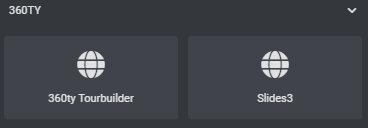
As soon as the plugin has been installed and activated, a new category “360ty” appears in the Elementor widget panel, in which the Slides 3 widget can be found
Controls
Section: Content
Subsection: Settings
Load Tour
Activating "Load Tour" prevents the tour from loading in the Elementor Editor. Since Elementor reloads the entire widget with every change, the tour is reloaded with every change. If the tour is reloaded frequently, the WebGL context of the browser overflows, which leads to the browser becoming very slow or even crashing.
Screenshot Button
Switching on "Screenshot Button" creates a button for each slide, which opens 360ty Screenshot
Studio the current location. This button is placed next to the "back" button and is only visible when the tour is active.
Subsection: Homeslide
The homeslide is the starting point for the slides. It has a different layout than the normal slides.
Tab: Content
Headline
The Headline of the Slide
Sub-Headline
The Sub-Headline of the Slide
Start Slide Button label
The text in the Button, that starts the Slides
Logo
The Logo in the bottom-right corner of the Homeslide
Logo Link
The Link to refer to, when the Logo is clicked
Tab: Background
Background Type
What kind of background should be used on the Homeslide
-
-
-
-
-
-
-
-
-
- Tour:
A 360 ° tour is used as the background - Image:
An Image is used as the background - Video:
A Video is used as the background
If you use Cloudflare Stream to deliver your videos, the ID of the video can be inserted here
- Tour:
-
-
-
-
-
-
-
-
Subsection: Navbar
Social Buttons
Erstellt einen Social Media Button an der rechten Seite der Navbar
Creates a socail media button on the right if the navbar
Social Type
Determines the Icon, which is used for the button
Social URL
The URL that's refered to, when the social media button is clicked
Subsection: About us & Partner
This is where the content of the "About Us" panel is determined
Tab: About us
About us & Partner
If this is set to "show", the "About us" and "Partner" buttons are created in the navbar
Headline
The Headline in the "about us" panel
Sub-headline
The sub-headline in the "about us" panel
Description
The description in the "about us" panel
Image
An image, that can be inserted before the description
Tab: Partner
Name
What the element should be called in the Elementor Editor. Doesn't change anything in the slides
Link
The URL that's refered to, when the partner is clicked on
Image
The Image used for the partner
Subsection: Slides
The Slides are created here
Slide Name
What the element should be called in the Elementor Editor. Doesn't change anything in the slides. Certainly helps keeping the overview tho
Direction
The direction of the Slide
vertical -> Mainslide
horizontal -> Subslide
The first slide has to be a vertical one!
The horizontal slides always append themselfs to the previous vertical slide
Tab: Content
the content of the slide
Headline
the headline of the slide
Tour-start Button Label
The label of the button, that sets the tour active
Facebook Button URL
The facebook link to the tour.
If the button is not wanted, this field can be left empty
Description
The description of the slide
Photographer
The Photographer of the slide
Location
The Location of the slide tour
Tab: Tour
The Settings of the slide tour
Basepath
The URL on which the tour files of the desired tour are located
Node
the ID of the node on which the tour should start
FOV
The field of view / the zoom value on which the tour is started.
-
-
-
-
-
-
-
-
-
- The limit values are different depending on the tour and node. Mostly, however, between 5 and 100.
- Small value -> zoomed in
- Great value -> zoomed out
- Standard -> 70
-
-
-
-
-
-
-
-
Tilt
The vertical value of the start position of the tour in °
-
-
-
-
-
-
-
-
-
- limit values: -90 - 90
- -90 -> 90° downwards
- 90 -> 90° upwards
- 0 -> straight ahead
-
-
-
-
-
-
-
-
Pan
The horizontal value of the start position of the tour in °
-
-
-
-
-
-
-
-
-
- limit values: -360 - 360
- -90 -> quarter turn to the right
- 180-> half a turn to the left
- 0 -> straight ahead
-
-
-
-
-
-
-
-
Section: Style
Slides Colors
The primary and secondary colors are specified here. These influence some elements of the slides, such as the color of the buttons
DE - Dokumentation Slides3
Begriffe [DE] | Slides3
Homeslide
Die Homeslide ist der Startpunkt der Slides. Sein Navigations-Hash ist "#Home". Die Homeslide hat ein anderes Layout und unterscheidet sich im Inhalt.
Mainslide/vertikale Slide
Eine Mainslide ist eine vertikale slide der Slides. Durch Scrollen/Swipen nach unten und oben wird immer die nächste vertikale Slide aktiviert und die aktuelle horizontale Slide-position ignoriert.
Subslide/horizontale Slide
Eine Subslide ist eine horizontale Slide der Slides. Jede Subslide hat eine Mainslide als Eltern-Element
Node
Eine Node ist ein 360 ° Bild. Die Panorama Tour besteht aus Nodes, die durch Hotspots verbunden sind.
FOV
FOV (Field of View) bezeichnet die Zoom variable einer Node. Dies wird in ° angegeben. Der Standardwert liegt dabei bei 65. Je niedriger der Wert, desto näher wird herangezoomt. Die Grenzwerte sind je nach Node und Bildauflösung verschieden aber liegen meistens zwischen 5 und 100.
Tilt
Tilt bezeichnet die vertikale Ausrichtung einer Node. Dies wird in ° angegeben. Die Grenzwerte liegen dabei bei -90 bis 90. Bei -90° schaut man in den Boden und bei 90° in den Himmel. Bei 0° gerade noch vorne.
Pan
Pan bezeichnet die horizontale Ausrichtung einer Node. Dies wird in ° angegeben. Die Grenzwerte liegen dabei bei -360 bis 360. Das Vorzeichen gibt dabei die Richtung an. + = im Uhrzeigersinn, – = gegen den Uhrzeigersinn. +/-90° ist eine viertel Drehung, +/-180° ist eine halbe Drehungung…
Control
Ein Control-Element ist ein Eingabefeld im Elementor-Editor
API [DE] | Slides3
Einstieg
Slides3 wird über diese JS und CSS Dateien eingebunden:
<body>

  <script src="https://storage.googleapis.com/api.360ty.cloud/slides3/js/slides3.js"></script>

</body>
<head>
<link rel="stylesheet" href="https://storage.googleapis.com/api.360ty.cloud/slides3/css/slides3.css">
<link rel="stylesheet" href="https://storage.googleapis.com/api.360ty.cloud/360ty_styles.css">
<link rel="stylesheet" href="https://cdnjs.cloudflare.com/ajax/libs/font-awesome/5.13.0/css/all.min.css">
</head>
Jetzt gibt es eine Klasse "Slides3". Erstelle ein <div> Element und weise ihm eine eindeutige ID zu. Diese ID muss der Parameter in der Klasseninstanziierung sein.
Die Klasse wird dann wiefolgt instanziiert:
var slides3 = new Slides3("containerID");Der Name der Variable muss nicht "slides3" sein. Ein eigener Namen kann dafür genutzt werden.
Homeslide erstellen
Die Homeslide ist optional!
Die Homeslide wird mit der "createHomeSlide" Methode erstellt:
slides3.createHomeSlide()Homeslide Hintergrund hinzufügen
Tour als Hinterground
Um eine Tour im Hintergrund hinzuzufügen, füge der Methode "createHomeSlide" einfach einige Parameter hinzu:
slides3.createHomeSlide({
    basepath : String /* -> URL auf der die Tourdateien zu finden sind */,
	node : Number /* -> Die Node ID ohne das "node" davor */,
	fov : Number [~5 - ~90] /* -> Der Zoom Wert des 360° Bildes in ° */,
	tilt : Number [-90 - 90] /* -> Die vertikale Position des 360° Bildes in ° (-90° -> gerade nach unten, 0 -> gerade aus, 90 -> gerade in den Himmel) */,
	pan : [-360 - 360] /* -> Die horizontale Position des 360° Bilder (Das Vorzeichen bestimmt die Richtung -> - = links, + = rechts | -90 -> viertel Drehung nach links, 45 -> achtel Drehung nach rechts)*/
});

//Beispiel:
slides3.createHomeSlide({
    basepath : "https://lechwinter.360ty.cloud/",
	node : 45,
	fov : 60,
	tilt : -10,
	pan : -45,
});
Bild als Hintergrund
Um ein Bild als Hintergrund zu verwenden, wird die "addHomeslideBackgroundImage" Methode benutzt:
slides3.addHomeslideBackgroundImage(url:String)

//Beispiel:
slides3.addHomeslideBackgroundImage("https://wiki.360ty.world/favicon.ico")
Video als Hintergrund
Um ein Video als Hintergrund zu verwenden, wird die "addHomeslideBackgroundVideo" Methode benutzt:
slides3.addHomeslideBackgroundVideo(url:String)

//Beispiel:
slides3.addHomeslideBackgroundVideo("http://techslides.com/demos/sample-videos/small.mp4")
benutzte keine relativen Pfade! (z.B.: ./video.mp4)
Falls du Cloudflare Stream benutzt, um die Videos zu liefern, kannst du die ID des video als URL Parameter angeben
Inhalte zur Homeslide hinzufügen
Überschrift hinzufügen
Um der Homeslide eine Überschrift hinzuzufügen, wird die "addHomeslideHeadline" Methode benutzt:
slides3.addHomeslideHeadline(text:String)

//Beispiel
slides3.addHomeslideHeadline("my Headline")
Texte hinzufügen
Um der Homeslide Texte hinzuzufügen, wird die "addHomeslideParagraph" Methode benutzt:
slides3.addHomeslideParagraph(text:String)

//Beispiel:
slides3.addHomeslideParagraph("Paragrafen-inhalt")
"start" Button hinzufügen
Um der Homeslide einen Button hinzuzufügen, der zur Ersten Mainslide verweist, wird die "addHomeslideStartSlidesButton" Methode benutzt:
slides3.addHomeslideStartSlidesButton(text:String) //Der Text Parameter ist das Label des Buttons

//Beispiel:
slides3.addHomeslideStartSlidesButton("Start Slides")
benutzerdefinierte Elemente hinzufügen *EXPERIMENTAL*
Um der Homeslide benutzerdefinierte Elemente hinzuzufügen, wird die "addToHomeslideTextContainer" Methode benutzt:
slides3.addToHomeslideTextContainer(element:HTMLElement)
//Der element Parameter ist ein HTML elemment. Man kann z.B. "document.getElementById("myId")" benutzen, um ein existentes Element an die Homeslide anzuhängen
//Beispiel:
let paragraph = document.createElement("p");
paragraph.innerText = "Paragrafen-Inhalt";

slides3.addToHomeslideTextContainer(paragraph)
Dies ist eine experimentelle Methode. Benutzte sie auf eigene Gefahr!
Der Container ist eine Flexbox
Logo hinzufügen
Um der Homeslide ein Logo hinzuzufügen, wird die "addHomeslideLogo" Methode benutzt:
slides3.addHomeslideLogo(imgURL:String,link:String)
//imgURL: Quelle des Bildes
//link: Der Link, der geöffnet wird, wenn auf das Logo geklickt wird

//Beispiel:
slides3.addHomeslideLogo("https://wiki.360ty.world/favicon.ico","https://wiki.360ty.world/")
Mainslides erstellen
Um eine Mainslide/vertikale Slide zu erstellen, wird die "createSlide" Methode benutzt:
var slideIndex1 = slides3.createSlide({
  	basepath : String /* -> URL auf der die Tourdateien zu finden sind */,
	node : Number /* -> Die Node ID ohne das "node" davor */,
	fov : Number [~5 - ~90] /* -> Der Zoom Wert des 360° Bildes in ° */,
	tilt : Number [-90 - 90] /* -> Die vertikale Position des 360° Bildes in ° (-90° -> gerade nach unten, 0 -> gerade aus, 90 -> gerade in den Himmel) */,
	pan : [-360 - 360] /* -> Die horizontale Position des 360° Bilder (Das Vorzeichen bestimmt die Richtung -> - = links, + = rechts | -90 -> viertel Drehung nach links, 45 -> achtel Drehung nach rechts)*/
});

//Beispiel:
var slideIndex1 = slides3.createSlide({
    basepath : "https://lechwinter.360ty.cloud/",
	node : 45,
	fov : 60,
	tilt : -10,
	pan : -45,
});
Die "createSlide" Methode nimmt ein Objekt von Tour Optionen als parameter.
Diese Methode gibt den Slide Index zurück, welches als Parameter für andere Methoden gebraucht wird.
Inhalte zu Mainslides hinzufügen
Um einer Mainslide Inhalte hinzuzufügen, wird immer der Slide Index der Mainslide gebraucht, welches der Rückgabewert der "createSlide" Methode ist
Buttons hinzufügen
Um einer Mainslide einen Button hinzuzufügen, wird die "addToSlideButtonContainer" Methode benutzt:
slides3.addToSlideButtonContainer(slideIndex:Object, element:HTMLElement);

//Beispiel:
slides3.addToSlideButtonContainer(slideIndex1, slides3.addSlideStartButton("Highres 360° Panorama starten"));
In diesem Beispiel verwenden wir die Methode "addSlideStartButton", um einen Button zu erstellen, mit der das Overlay ausgeblendet wird, damit auf die Tour zugegriffen werden kann.
Hier können beliebige Elemente zugefügt werden.
Verwende ein "<a>" - Element und gib dem Element die "Slide-Button" CSS-Klasse, damit der Stil sich den anderen Buttons anpasst.
Überschrift hinzufügen
Um einer Mainslide eine Überschrift hinzuzufügen, wird die "addSlideHeadline" Methode benutzt:
slides3.addSlideHeadline(slideIndex:Object, text:String);

//Beispiel:
slides3.addSlideHeadline(slideIndex1, "meine Überschrift");
Beschreibung hinzufügen
Um einer Mainslide eine Beschreibung hinzuzufügen, wird die "addSlideDescription" Methode benutzt:
slides3.addSlideDescription(slideIndex:Object, text:String);

//Beispiel:
slides3.addSlideDescription(slideIndex1, "Diese Slide wurde von 360ty.world zur Verfügung gestellt");
Fotograf hinzufügen
Um einer Mainslide einen Fotograf hinzuzufügen, wird die "addSlideFotographer" Methode benutzt:
slides3.addSlideFotographer(slideIndex:Object, text:String);

//Beispiel:
slides3.addSlideFotographer(slideIndex1, "Rene");
Location hinzufügen
Um einer Mainslide eine Location hinzuzufügen, wird die "addSlideLocation" Methode benutzt:
slides3.addSlideLocation(slideIndex:Object, text:String);

//Beispiel:
slides3.addSlideLocation(slideIndex1, "Altach, Vorarlberg");
Facebook share Button hinzufügen
Um einer Mainslide den Facebook share Button hinzuzufügen, wird die "addSlideFacebookButton" Methode benutzt:
slides3.addSlideFacebookButton(slideIndex:Object, link:String);

//Beispiel:
slides3.addSlideFacebookButton(slideIndex1, "https://www.facebook.com/360ty.world/photos/4481435151872107");
Subslides erstellen
Um eine Subslide/horizontale Slide zu erstellen, wird die "createSubSlide" Methode benutzt:
var slideIndex1_1 = slides3.createSubSlide(mainSlideIndex:Object,{
  	basepath : String /* -> URL auf der die Tourdateien zu finden sind */,
	node : Number /* -> Die Node ID ohne das "node" davor */,
	fov : Number [~5 - ~90] /* -> Der Zoom Wert des 360° Bildes in ° */,
	tilt : Number [-90 - 90] /* -> Die vertikale Position des 360° Bildes in ° (-90° -> gerade nach unten, 0 -> gerade aus, 90 -> gerade in den Himmel) */,
	pan : [-360 - 360] /* -> Die horizontale Position des 360° Bilder (Das Vorzeichen bestimmt die Richtung -> - = links, + = rechts | -90 -> viertel Drehung nach links, 45 -> achtel Drehung nach rechts)*/
});

//Example:
var slideIndex1_1 = slides3.createSubSlide(slideIndex1,{
    basepath : "https://lechwinter.360ty.cloud/",
	node : 45,
	fov : 60,
	tilt : -10,
	pan : -45,
});
Die Methode verwendet den Slide-Index der Mainslide, deren Kind-Element die Subslide sein soll, als ersten Parameter. Der Index wird von der Methode "createSlide" zurückgegeben.
Die Methode verwendet ein Objekt mit Touroptionen als zweiten Parameter.
Die Methode gibt den Index der Subslide zurück, der als Parameter für andere Methoden verwendet wird.
Inhalte zu Subslides hinzufügen
Um Inhalte zu Subslides hinzuzufügen, werden dieselben Methoden verwendet wie zum Hinzufügen von Inhalten zu Mainslides.
Anstatt den Mainslide-Index zu übergeben, wird der Subslide-Index übergeben.
//anstatt:
slides3.addSlideHeadline(slideIndex1, "meine Überschrift");
//verwende:
slides3.addSlideHeadline(slideIndex1_1, "meine Überschrift");
Navbar
slides3.createNav();"Über uns" hinzufügen
slides3.setShowAboutUs(show:Boolean);
slides3.createAboutUsContainer();
//Beispiel
slides3.setShowAboutUs(true);
slides3.createAboutUsContainer();
Inhalte zu "Über uns" hinzufügen
Überschrift hinzufügen
Um dem "Über uns" Panel eine Überschrift hinzuzufügen, wird die "addAboutUsHeadline" Methode benutzt:
slides3.addAboutUsHeadline(text:String);

//Beispiel
slides3.addAboutUsHeadline("Über 360ty");
Unterüberschrift hinzufügen
Um dem "Über uns" Panel eine Unterüberschrift hinzuzufügen, wird die "addAboutUsSubHeadline" Methode benutzt:
slides3.addAboutUsSubHeadline(text:String);

//Beispiel
slides3.addAboutUsSubHeadline("Bilder die du bewegst und dich bewegen");
Bild hinzufügen
Um dem "Über uns" Panel ein Bild hinzuzufügen, wird die "addAboutUsImage" Methode benutzt:
slides3.addAboutUsImage(src:String);

//Beispiel
slides3.addAboutUsImage("https://wiki.360ty.world/favicon.ico");
Beschreibung hinzufügen
Um dem "Über uns" Panel eine Beschreibung hinzuzufügen, wird die "addAboutUsDescription" Methode benutzt:
slides3.addAboutUsDescription(text:String);

//Beispiel
slides3.addAboutUsDescription(`Lorem ipsum dolor sit amet consectetur adipisicing elit. Maxime mollitia,
molestiae quas vel sint commodi repudiandae consequuntur voluptatum laborum
numquam blanditiis harum quisquam eius sed odit fugiat iusto fuga praesentium
optio, eaque rerum! Provident similique accusantium nemo autem. Veritatis
obcaecati tenetur iure eius earum ut molestias architecto voluptate aliquam
nihil, eveniet aliquid culpa officia aut! Impedit sit sunt quaerat, odit,
tenetur error, harum nesciunt ipsum debitis quas aliquid.`);
Partner hinzufügen
Um dem "Über uns" Panel Partner hinzuzufügen, wird die "addPartners" Methode benutzt:
slides3.addPartners(partners:Array
[{
	imgURL: String /* Die URL des Bildes des Partners */,
    link: String /* Die URL, die geöffnet wird, wenn das Partner Bild angeklickt wird */,
}]);

//Beispiel
slides3.addPartners(
[
  {
    imgURL:"https://storage.googleapis.com/logos.360ty.cloud/360ty_world_extern.png",
    link:"https://360ty.world/",
  },
  {
    imgURL:"https://multimedia-fabrik.com/wp-content/uploads/2019/02/cropped-Logo_MMF_300.png",
    link:"https://multimedia-fabrik.com",
  }
]
);
Social Media Buttons hinzufügen
slides3.addNavbarSocialButton(social:String,link:String)

//Beispiel:
slides3.addNavbarSocialButton("facebook",link:"facebook.com/360ty.world");
slides3.addNavbarSocialButton("instagram",link:"https://www.instagram.com/360ty.world_mmf")
Die icons sind Font Awesome Icons. Diese benutzen den "social" parameter als CSS fa - Klasse ("fa-${social}")
Allgemeine Einstellungen
Screenshot Studio Button
Um neben dem "zurück" Button, wenn die Tour aktiv ist, einen Button zu erstellen, der das 360ty Screenshot Studio auf der jetztigen Position öffnet, zu erstellen, wird die "setShowScreenshotButton" Methode verwendet:
Setzte den Parameter dieser Methode auf "true":
slides3.setShowScreenshotButton(show:Boolean)

//example:
slides3.setShowScreenshotButton(true);
Tour laden
setting Tour loading to "false", will prevent the tour from loading. To set this variable, use the "setTourLoad" method:
Das setzen von "Tour laden" auf "false" verhindert das laden der Tour. Um diese variable zu setzen, wird die "setTourLoad" Methode benutzt:
slides3.setTourLoad(load:Boolean)

//Beispiel:
slides3.setTourLoad(false);
Dies wird hauptsächlich für Debugging-Zwecke oder für Frameworks verwendet, die die Tour bei Eingabeänderungen erneut rendert, wie z. B. Elementor. Wenn die Tour zu oft erneut rendert, wird der WebGL-Kontext überlastet und der Browser wird erheblich verlangsamt oder stürzt sogar ab.
Slides Initialisieren
after setting the options and creating the slides, you can initialise the Slides with the "init" method:
Nach dem die Einstellungen getroffen sind und die Slides erstellt wurden, können die Slides mit der "init" Methode initialisiert werden:
slides3.init()Styling
Primäre und Sekundäre Farben
Manche Elemente der Slides benutzen primäre und sekundäre Farben, die mit Hilfe von CSS gesetzt werden können:
Primäre Farben setzen
/*Ändere die Farbwerte nach deinen Wünschen*/
.color-primary{
  color:#f40000 !important;
}
.background-primary{
  background-color:#f40000 !important;
}
.border-primary{
  border-color:#f40000 !important;
}
Sekundäre Farben setzen
/*Ändere die Farbwerte nach deinen Wünschen*/
.color-secondary{
  color:#22264b !important;
}
.background-secondary{
  background-color:#22264b !important;
}
.border-secondary{
  border-color:#22264b !important;
}
Beispiel
<html>
<head>
  <meta charset="UTF-8">
  <meta name="apple-mobile-web-app-capable" content="yes">
  <meta name="viewport" content="width=device-width, initial-scale=1.0, maximum-scale=1.0, user-scalable=no">
  <link rel="stylesheet" href="https://storage.googleapis.com/api.360ty.cloud/360ty_styles.css">
  <link rel="stylesheet" href="https://storage.googleapis.com/api.360ty.cloud/slides3/css/slides3.css">
  <link href="https://cdnjs.cloudflare.com/ajax/libs/font-awesome/5.13.0/css/all.min.css" rel="stylesheet">
  <style>
    body{
      min-height: -webkit-fill-available;
      min-height: 100vh;
      margin:0;
    }
    #slides_container{
      height:100%;
      width:100%;
    }
    /* Primäre und Sekundäre Farben setzen */
    .color-primary{
      color:#f40000 !important;
    }
    .background-primary{
      background-color:#f40000 !important;
    }
    .border-primary{
      border-color:#f40000 !important;
    }
    .color-secondary{
      color:#22264b !important;
    }
    .background-secondary{
      background-color:#22264b !important;
    }
    .border-secondary{
      border-color:#22264b !important;
    }
  </style>
</head>
<body>
  <!-- Slides container erstellen -->
  <div id="slides_container"></div>
  <script src="https://storage.googleapis.com/api.360ty.cloud/slides3/js/slides3.js"></script>

  <!-- Slides erstellen -->
  <script>

    var slides3 = new Slides3("slides_container"); //instanziieren
    //allgemeine Einstellungen
    slides3.setShowScreenshotButton(true);

    //Über uns
    slides3.createAboutContainer();
    slides3.setShowAboutUs(true);
    slides3.addAboutUsHeadline("Über 360ty");
    slides3.addAboutUsSubHeadline("360ty-fy your world");
    slides3.addAboutUsImage("https://lh3.googleusercontent.com/proxy/SlN1AQHX3sGjA5Ue25vFOaPdMpV2lNZIQkeofUxtZa5-dlwuX_UwEwISAX1uS_BwjSY4CmMlbmMJGjV_v5MDStxV_5PW7omlFqa1t909-J0")
    slides3.addAboutUsDescription(`Lorem ipsum dolor sit amet consectetur adipisicing elit. Maxime mollitia,molestiae quas vel sint commodi repudiandae consequuntur voluptatum laborum
numquam blanditiis harum quisquam eius sed odit fugiat iusto fuga praesentiumoptio, eaque rerum! Provident similique accusantium nemo autem. Veritatisobcaecati tenetur iure eius earum ut molestias architecto voluptate aliquam
nihil, eveniet aliquid culpa officia aut! Impedit sit sunt quaerat, odit,tenetur error, harum nesciunt ipsum debitis quas aliquid. Reprehenderit,quia. Quo neque error repudiandae fuga? Ipsa laudantium molestias eos sapiente officiis modi at sunt excepturi expedita sint? Sed quibusdamrecusandae alias error harum maxime adipisci amet laborum. Perspiciatis
minima nesciunt dolorem! Officiis iure rerum voluptates a cumque velit quibusdam sed amet tempora. Sit laborum ab, eius fugit doloribus tenetur fugiat, temporibus enim commodi iusto libero magni deleniti quod quam consequuntur! Commodi minima excepturi repudiandae velit hic maxime
doloremque. Quaerat provident commodi consectetur veniam similique ad earum omnis ipsum saepe, voluptas, hic voluptates pariatur est explicabo fugiat, dolorum eligendi quam cupiditate excepturi mollitia maiores labore suscipit quas? Nulla, placeat. Voluptatem quaerat non architecto ab laudantium
modi minima sunt esse temporibus sint culpa, recusandae aliquam numquam totam ratione voluptas quod exercitationem fuga. Possimus quis earum veniam quasi aliquam eligendi, placeat qui corporis!`);
    slides3.addPartners([
      {
        imgURL:"https://multimedia-fabrik.com/wp-content/uploads/2019/02/cropped-Logo_MMF_300.png",
        link:"https://multimedia-fabrik.com"
      },
      {
        imgURL:"https://storage.googleapis.com/logos.360ty.cloud/360ty_world_extern.png",
        link:"https://360ty.world"
      },
    ])
    //Navbar
    slides3.createNav();
	  slides3.addNavbarSocialButton("facebook", "https://www.facebook.com/360ty.world");
    slides3.addNavbarSocialButton("flickr", "https://www.pinterest.de/360ty_world");
    slides3.addNavbarSocialButton("instagram", "https://www.instagram.com/360ty.world_mmf/");
    slides3.addNavbarSocialButton("youtube", "https://www.youtube.com/channel/UCCiyXizlQQQc_-XC9KcEYiw");
    //Homeslide
    slides3.createHomeSlide({
    	basepath:"https://altach.360ty.world/",
    	node:1,
    	fov:20,
      	tilt:-20,
      	pan:21
    });
    slides3.addHomeslideHeadline("360ty");
    slides3.addHomeslideParagraph("Fühle 360° Fotographie");
    slides3.addHomeslideStartSlidesButton("Sliding erlebnis starten");
    slides3.addHomeslideLogo("https://storage.googleapis.com/logos.360ty.cloud/360ty_world_extern.png", "https://360ty.world/");
    //Mainslide 1
    let slideIndex1 = slides3.createSlide({
        basepath: "https://lechwinter.360ty.cloud/",
        node: 1,
        fov: 60,
        tilt: 20,
        pan: -10
      });
    slides3.addToSlideButtonContainer(slideIndex1, slides3.addSlideStartButton("starte die 360° tour"));
    slides3.addSlideFacebookButton(slideIndex1, "https://www.facebook.com/lechzuers/photos/a.10157076246188447/10157076247643447/?type=3&theater");
    slides3.addSlideHeadline(slideIndex1, `Mainprojekt: Lech`);
    slides3.addSlideDescription(slideIndex1, `Lech - Winter`);
    slides3.addSlideFotograf(slideIndex1, "Rene");
    slides3.addSlideLocation(slideIndex1, "Lech am Arlberg | 47°13'N 10°08'");

    //Subslide 1_1
    let slideIndex1_1 = slides3.createSubSlide(slideIndex1, {
        basepath: "https://lechsommer.360ty.cloud/",
        node: 1,
        fov: 60,
        tilt: 20,
       	pan: -10
      });
    	slides3.addToSlideButtonContainer(slideIndex1_1, slides3.addSlideStartButton("starte die 360° tour"));
      	slides3.addSlideHeadline(slideIndex1_1, `Mainprojekt: Lech`);
      	slides3.addSlideDescription(slideIndex1_1, `Lech - Sommer`);
      	slides3.addSlideFotograf(slideIndex1_1, "Rene");
      	slides3.addSlideLocation(slideIndex1_1, "Lech am Arlberg | 47°13'N 10°08'");
    let slideIndex1_2 = slides3.createSubSlide(slideIndex1, {
        basepath: "https://lechbynight.360ty.cloud/",
        node: 1,
        fov: 60,
        tilt: 20,
       	pan: -10
      });
    	slides3.addToSlideButtonContainer(slideIndex1_2, slides3.addSlideStartButton("starte die 360° tour"));
      	slides3.addSlideHeadline(slideIndex1_2, `Mainprojekt: Lech`);
      	slides3.addSlideDescription(slideIndex1_2, `Lech - Nacht`);
      	slides3.addSlideFotograf(slideIndex1_2, "Rene");
      	slides3.addSlideLocation(slideIndex1_2, "Lech am Arlberg | 47°13'N 10°08'");
    //Mainslide 2
    let slideIndex2 = slides3.createSlide({
        basepath: "https://burgiswinter.360ty.cloud/",
        node: 1,
        fov: 60,
        tilt: 20,
        pan: -10
      });
    slides3.addToSlideButtonContainer(slideIndex2, slides3.addSlideStartButton("starte die 360° tour"));
    slides3.addSlideHeadline(slideIndex2, `Kundenprojekt: Burgis`);
    slides3.addSlideDescription(slideIndex2, `Burgis - Winter`);
    slides3.addSlideFotograf(slideIndex2, "Rene");

    //Subslide 2_1
    let slideIndex2_1 = slides3.createSubSlide(slideIndex2, {
        basepath: "https://burgissommer.360ty.cloud/",
        node: 1,
        fov: 60,
        tilt: 20,
       	pan: -10
      });
    slides3.addToSlideButtonContainer(slideIndex2_1, slides3.addSlideStartButton("starte die 360° tour"));
    slides3.addSlideHeadline(slideIndex2_1, `Kundenrojekt: Burgis`);
    slides3.addSlideDescription(slideIndex2_1, `Burgis - Sommer`);
    slides3.addSlideFotograf(slideIndex2_1, "Rene");
    //slides3 initialisieren
    slides3.init()
  </script>
</body>
</html>
360ty Elementor Addon - WordPress Plugin [DE] | Slides3
installation
WordPress Dashboard
-
-
- Lade das Plugin hier herunter
- Gehe zu deinem WordPress Dashboard -> Plugins
- Klicke auf den “Installieren” Button rechts neben der Überschrift “Plugins”
- An der selben stelle, klicke nun auf den “Plugin hochladen” Button, wähle die heruntergeladene .zip Datei aus und klicke auf Jetzt installieren
- Klicke auf den “Plugin aktivieren” Button
- Nun sollte eine Widget-Kategorie namens “360ty” im Elementor Widget-Tab zu sehen sein.
-
Filebrowser
-
-
- Lade das Plugin hier herunter und entpacke die .zip Datei
- Wechsle zu deinem WordPress Ordner -> wp-content-> plugins
- Füge den extrahierten Ordner in den Plugins Ordner ein
- Aktiviere das “360ty Elementor Addon” Plugin in deinem WordPress Dashboard -> Plugins -> installierte Plugins
- Nun sollte eine Widget-Kategorie namens “360ty” im Elementor Widget-Tab zu sehen sein.
-
CLI
Windows
-
-
- Öffne eine Terminalanwendung (z.B.: CMD)
- Wechsle zu deinem WordPress Ordner (cd FILEPATH/TO/WORDPRESS)
- Gehe zum Plugins Ordner (cd wp-content/plugins)
- führe diese Commandline aus:
-
git clone https://github.com/Jonas-360ty/360ty_Elementor_Addon_Plugin.gitLinux
-
-
- Öffne eine Terminalanwendung (z.B.: Shell)
- Wechsle zu deinem WordPress Ordner (cd FILEPATH/TO/WORDPRESS)
- Gehe zum Plugins Ordner (cd wp-content/plugins)
- führe diese Commandline aus:
-
git clone https://github.com/Jonas-360ty/360ty_Elementor_Addon_Plugin.gitMac-OS
-
-
- Öffne eine Terminalanwendung (z.B.: Terminal)
- Wechsle zu deinem WordPress Ordner (cd FILEPATH/TO/WORDPRESS)
- Gehe zum Plugins Ordner (cd wp-content/plugins)
- führe diese Commandline aus:
-
git clone https://github.com/Jonas-360ty/360ty_Elementor_Addon_Plugin.gitSSH
Windows
-
-
- Öffne einen SSH Client (z.B.: Putty)
- Verbinde dich mit deinem Webserver, auf dem WordPress liegt
- Wechsle zu deinem WordPress Ordner (cd FILEPATH/TO/WORDPRESS)
- Gehe zum Plugins Ordner (cd wp-content/plugins)
- führe diese Commandline aus:
-
git clone ssh://git@github.com:Jonas-360ty/360ty_Elementor_Addon_Plugin.gitLinux
-
-
- Öffne eine Terminalanwendung (z.B.: Shell)
- Verbinde dich mit deinem Webserver, auf dem WordPress liegt
- Wechsle zu deinem WordPress Ordner (cd FILEPATH/TO/WORDPRESS)
- Gehe zum Plugins Ordner (cd wp-content/plugins)
- führe diese Commandline aus:
-
git clone ssh://git@github.com:Jonas-360ty/360ty_Elementor_Addon_Plugin.gitMac-OS
-
-
- Öffne eine Terminalanwendung (z.B.: Terminal)
- Verbinde dich mit deinem Webserver, auf dem WordPress liegt
- Wechsle zu deinem WordPress Ordner (cd FILEPATH/TO/WORDPRESS)
- Gehe zum Plugins Ordner (cd wp-content/plugins)
- führe diese Commandline aus:
-
git clone ssh://git@github.com:Jonas-360ty/360ty_Elementor_Addon_Plugin.gitPlugin Guide
Sobald Das Plugin Installiert und Aktiviert wurde, kommt beim Elementor Widget-Panel eine neue Kategorie “360ty” zum Vorschein, in der das Slides3 Widget zu finden ist
Controls
Section: Inhalt
Subsection: Settings
Load Tour
Das einschalten von "Load Tour" verhindert, dass die Tour im Elementor Editor ladet. Da Elementor bei jeder Änderung das ganze Widget neu ladet, wird bei jeder Änderung auch die Tour neu geladen. Wenn die Tour öfters neu geladen wird überfüllt das der WebGL Context des Browsers, was dazu führt, dass der Browser sehr langsam wird, oder sogar abstürzt.
Screenshot Button
Das einschalten von "Screenshot Button" erstellt bei jeder Slide einen Button der das 360ty Screenshot
Studio auf der jetzigen Position öffnet. Dieser Button ist neben dem "zurück" Button platziert und nur Sichtbar, wenn die Tour Aktiv ist.
Subsection: Homeslide
Die Homeslide ist der Startpunkt Slides. Diese hat ein anderes Layout als Die normalen Slides.
Tab: Content
Headline
Die Überschrift der Homeslide
Sub-Headline
Die Unterüberschrift der Homeslide
Start Slide Button label
Der Text, der im Button steht, der die Slides startet
Logo
Das Logo das Rechts unten in der Homeslide angezeigt wird
Logo Link
Der Link der aufgerufen wird, wenn das Logo angeklickt wird
Tab: Background
Background Type
Was für ein Hintergrund bei der Homeslide benutzt werden soll
-
-
-
-
-
-
-
-
-
- Tour:
Als Hintergrund wird eine 360° Tour benutzt - Image:
Als Hintergrund wird ein Bild benutzt - Video:
Als Hintergrund wird ein Video benutzt.
Falls du Cloudflare Stream zur bereitstellung deiner Videos benutzt, kann die ID des Video hier eingefügt werden
- Tour:
-
-
-
-
-
-
-
-
Subsection: Navbar
Social Buttons
Erstellt einen Social Media Button an der rechten Seite der Navbar
Social Type
Social URL
Die URL, die geöffnet wird, wenn der Social Media Button angeklickt wird
Subsection: About us & Partner
Hier wird der Inhalt des "Über uns" Panels bestimmt
Tab: About us
About us & Partner
Wird dies auf "show" gestellt, werden in der Navbar die "Über uns" und "Partner" Buttons erstellt
Headline
Die Überschrift des "Über uns" Panels
Sub-headline
Die Unterüberschrift des "Über uns" Panels
Description
Der Text/Beschreibung des "Über uns" Panels
Image
Ein Bild, das vor der Description eingefügt werden kann
Tab: Partner
Name
Wie das Element im Elementor Editor heißen soll. Ändert nichts an den Slides
Link
Die URL, die geöffnet werden soll, wenn auf den Partner geklickt wird
Image
Das Bild, welches für den Partner genutzt werden soll
Subsection: Slides
Hier werden die Slides erstellt
Slide Name
Wie das Element im Elementor Editor heißen soll. Ändert nichts an den Slides. Hilft aber den Überblick zu Behalten.
Direction
Die Slider Richtung der Slide.
vertikal -> Mainslide
horizontal -> Subslide
Die erste Slide muss eine vertikale sein!
Die horizontalen Slides binden sich immer an die letzte vertikale Slide an.
Tab: Content
der Inhalt der Slide
Headline
Die Überschrift der Slide
Tour-start Button Label
Der Text, der im Button steht, welcher die Tour startet
Facebook Button URL
Der Facebook link zur Tour
Falls der Button nicht erwünscht ist, kann dieses Feld leer gelassen werden
Description
Eine Beschreibung zur Slide
Photographer
Der Fotograf des Bildes
Location
Der Ort der Bildes
Tab: Tour
Die Einstellungen zur Tour der Slide
Basepath
Die URL auf der die Tourdateien der gewünschten Tour liegen
Node
die ID der Node auf der gestarted werden soll
FOV
Das Field of View/ der Zoom-wert auf der die Tour gestartet wird.
-
-
-
-
-
-
-
-
-
- Die Grenzwerte dabei sind bei je nach Tour und Node anders. Meistens Jedoch zwischen 5 und 100.
- Kleiner Wert -> reingezoomt
- Großer Wert -> rausgezoomt
- Standart -> 70
-
-
-
-
-
-
-
-
Tilt
Der vertikale Wert der start Position der Tour in °
-
-
-
-
-
-
-
-
-
- Grenzwerte: -90 - 90
- -90 -> 90° nach unten
- 90 -> 90° nach oben
- 0 -> gerade aus
-
-
-
-
-
-
-
-
Pan
Der horizontale Wert der start Position der Tour in °
-
-
-
-
-
-
-
-
-
- Grenzwerte: -360 - 360
- -90 -> viertel Drehung nach Rechts
- 180-> halbe Drehung nach Links
- 0 -> gerade aus
-
-
-
-
-
-
-
-
Section: Stil
Slides Colors
Hier werden die Primären und Sekundären Farben angegeben. Diese beeinflussen einige Elemente der Slides, wie zB die Farbe der Buttons